
Device guide · Samsung & LG

How to set up IPTV on a Samsung or LG smart TV

Most Samsung and LG TVs from the last several years can run an IPTV player app directly, so you don’t need a separate box.

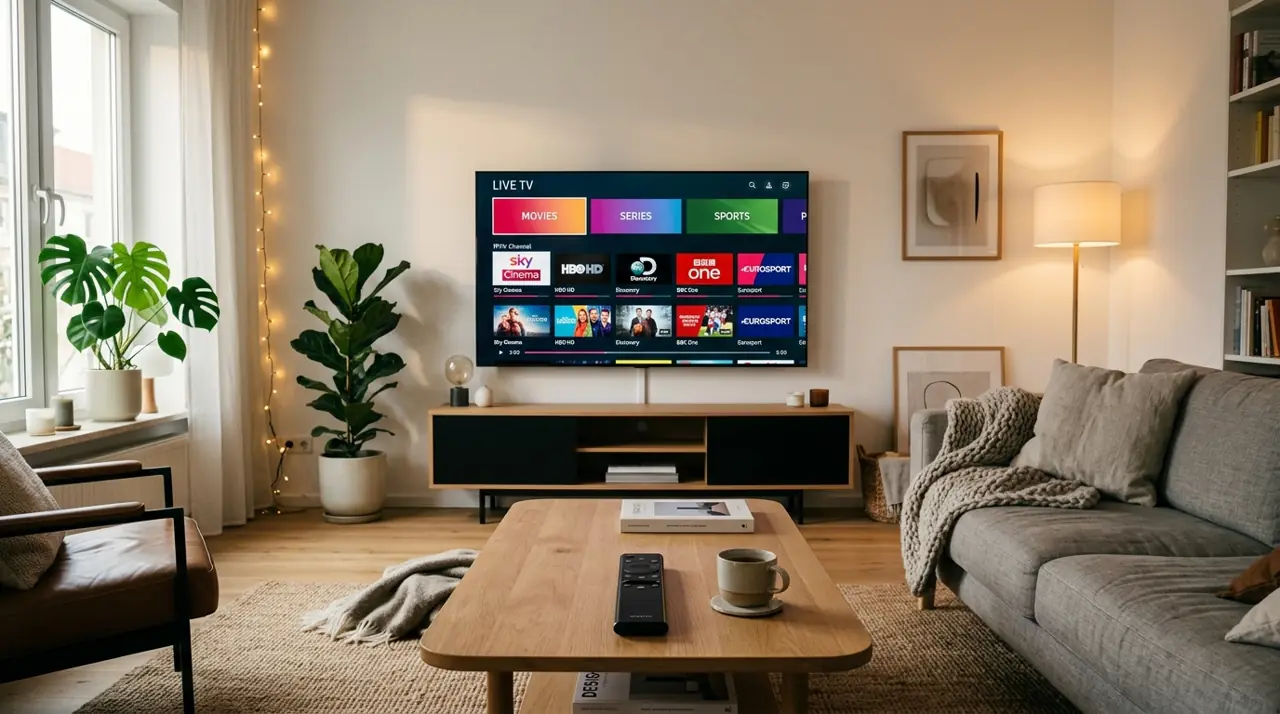
Smart TV on a timber cabinet in a bright living room, showing a home screen of apps

Short answer: install an IPTV player app from your TV’s app store (Samsung Apps or LG Content Store), note the device ID or MAC address it shows, add your playlist through the app’s website or settings, then restart the app.

Check your TV first

  • Samsung TVs run Tizen; LG TVs run webOS. Both have app stores with IPTV players.
  • Older models (roughly pre-2018) may not support current player apps, or may run them slowly. If yours struggles, a Fire TV Stick is an inexpensive fix.
  • Use a wired Ethernet connection if the TV is near your router. Many TVs have slower Wi-Fi than a modern streaming stick.

Choosing a player app

Smart TV player apps change regularly, so check what’s currently in your TV’s store. Common choices include IBO Player, Smart IPTV (SIPTV) and similar M3U players.

What to checkWhy it matters
Xtream Codes supportLoads channels, guide and on-demand titles together, with fewer manual steps.
Activation feeSome apps charge a one-off or yearly fee after a free period. It’s paid to the app developer, not to us.
How you add a playlistMany TV apps show a device ID or MAC address; you add your login on the developer’s website.
Recent updatesApps that are updated regularly are more likely to work with new TV firmware.

For a fuller comparison see IPTV player apps compared.

Samsung (Tizen) steps

  1. Press Home, open Apps and search for your chosen player.
  2. Install and open it. Write down the device ID / MAC address and any device key shown on screen.
  3. On your phone or computer, go to the app developer’s official website and find the playlist upload page.
  4. Enter the device ID, then your Xtream Codes details or M3U link. Save.
  5. Close and reopen the app on the TV. Channels and the guide will load.

LG (webOS) steps

  1. Press Home and open the LG Content Store (or Apps).
  2. Search for your player app and install it.
  3. Open the app and note the device ID or MAC address.
  4. Add your login through the developer’s website or directly in the app, if it allows that.
  5. Restart the app to load your channels.

Tips for smart TVs

  • Turn off motion smoothing (Samsung “Picture Clarity”, LG “TruMotion”) if fast movement looks unnatural, and use the TV’s Sport or Standard picture mode for live events.
  • Turn off “instant on”/quick start occasionally and power the TV fully off to clear memory.
  • If channels show a black screen, see IPTV not working: quick fixes.
  • If guide times are out, adjust the time zone in the app (EPG guide).
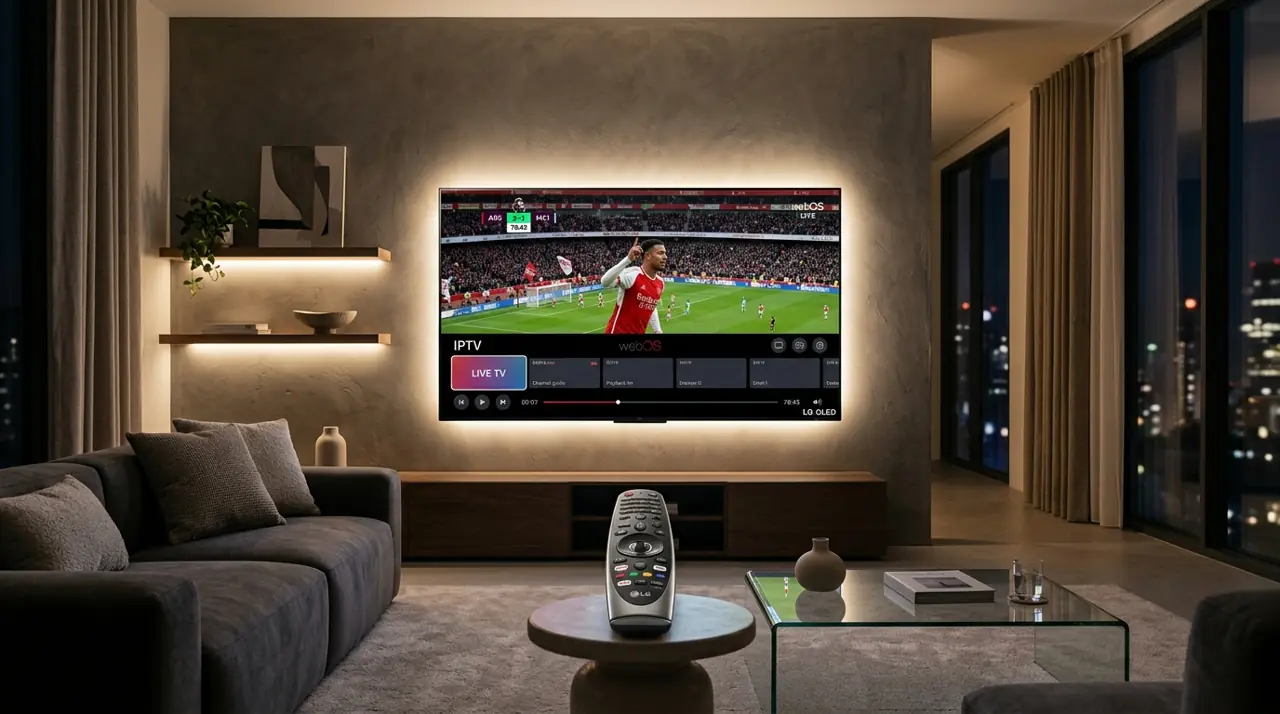
Smart TV in a modern lounge room showing a live football match, with a remote on the side table
LG TVs use webOS; player apps are installed from the LG Content Store.

Smart TV questions

Do I need a box to watch IPTV on a smart TV?

Usually not. Most recent Samsung and LG TVs can run a player app directly. A streaming stick only helps if your TV is old or slow.

Why does the app ask me to pay?

Some smart TV player apps charge an activation fee after a trial period. That fee goes to the app developer and is separate from your GetIPTV AU plan.

Can you set the app up for me?

We can guide you step by step on WhatsApp. Send us your TV brand, model and the app name, and a photo of the screen if you’re stuck.

Try it on your TV

The free 24-hour trial is the easiest way to check your TV and app before paying.

1 month

A$14.99 1 device · AUD

One-off payment for 1 month.
Good for trying a full month.

  • 50,000+ Live Channels
  • 180,000+ Movies & Series
  • Cricket · UFC · Boxing · PPV Events
  • Full Live Sports Coverage
  • Local Channels
  • Anti-Freeze Technology
  • 4K / UHD Quality
  • 24/7 Priority Support
Choose 1 month · 1 device

3 months

A$28.99 1 device · AUD

One-off payment for 3 months.
About A$9.66 a month.

  • 50,000+ Live Channels
  • 180,000+ Movies & Series
  • Cricket · UFC · Boxing · PPV Events
  • Full Live Sports Coverage
  • Local Channels
  • Anti-Freeze Technology
  • 4K / UHD Quality
  • 24/7 Priority Support
Choose 3 months · 1 device

6 months

A$47.99 1 device · AUD

One-off payment for 6 months.
About A$8.00 a month.

  • 50,000+ Live Channels
  • 180,000+ Movies & Series
  • Cricket · UFC · Boxing · PPV Events
  • Full Live Sports Coverage
  • Local Channels
  • Anti-Freeze Technology
  • 4K / UHD Quality
  • 24/7 Priority Support
Choose 6 months · 1 device

Choose 1, 2 or 3 devices above to see the matching one-off price here and at checkout. Extra devices are priced as multiples of the single-device price. All prices are in Australian dollars. No automatic renewal. Covered by our 7-day refund policy (conditions apply).
*Channel and on-demand line-ups change over time and aren’t guaranteed. Ask us before you buy if you need something specific.